Create a backup and keep a copy off the server
Video walkthrough: Back Up and Restore DerScanner from the DerSecur Control Panel (YouTube).
A backup on the same disk does not protect against loss of the whole server. Define protected external storage, retention, access controls and a restoration procedure first. A product-data backup and a whole-VM snapshot serve different purposes.
- Select the intended server, then open Backups. Confirm that it is the correct product server rather than another target.
- Press Make a backup. Read the confirmation: customer databases are dumped and the product directory is archived while the product keeps running. Use Cancel if the installation is wrong.
- Confirm and wait for the final result in Operations. Do not treat the directory of an unfinished operation as a completed backup.
- Return to Backups. Check the row's name, version, Made (the time the backup was made), size, database count and state. A complete copy reads Not checked (Restore verifies it): the list does not read the files, and Ready appears only for a copy whose files have been verified. The files are checked when you restore, and a restore refuses a damaged copy before it changes anything.
sudo dcp backup listshows the same state. An interrupted copy is marked Unfinished, a copy without its checksum file No checksums, a copy with a damaged index Damaged; none of them can be restored. An empty list or an unfinished-state warning is not evidence of a successful backup. - Identify the server-side backup directory. Settings lists the panel's working paths; an administrator can also run
sudo dcp backup liston the selected server. The CLI creation command issudo dcp backup. - Use your organisation's approved file-transfer method to copy the entire completed backup directory, retaining its contents and metadata, to protected external storage. This panel section has no cloud-export or retention-scheduling button.
- Verify transfer integrity and file accessibility. Record the product version, date, source server and storage location. Restrict access: the backup contains product data, licence and certificates.
- Periodically restore using Restore a backup on a server intended for that purpose. Merely possessing a file does not demonstrate recoverability.
The section Kept after upgrades contains the previous-version return path. When a restore has put data aside, the section is titled Kept after upgrades and restores (or Put aside by a restore when only that is kept) and lists that data as Data replaced by a restore (see Restore a backup). Clean up now (you confirm it by typing the server name; on Overview the same cleanup is the button Delete the way back to … with the version named) permanently deletes everything the update kept for that return: the old product files, old SCA database, old images and the backup made before that update. After cleanup, Return the previous version is no longer possible and the deleted material cannot be recovered. Copy the pre-update backup off the server first if you still need it. Cleanup does not export a backup or rotate external storage.
A virtual machine cloned from a server that already made a backup carries that server's identity, so DCP treats the backups of the two servers as backups of one server. Right after cloning, run sudo rm /var/lib/dcp/server-id on the copy; DCP creates a new identity at its next backup. Restoring a clone's backup keeps the original server's DerScanner admin password: sign in with the password you set there, or set a new one.
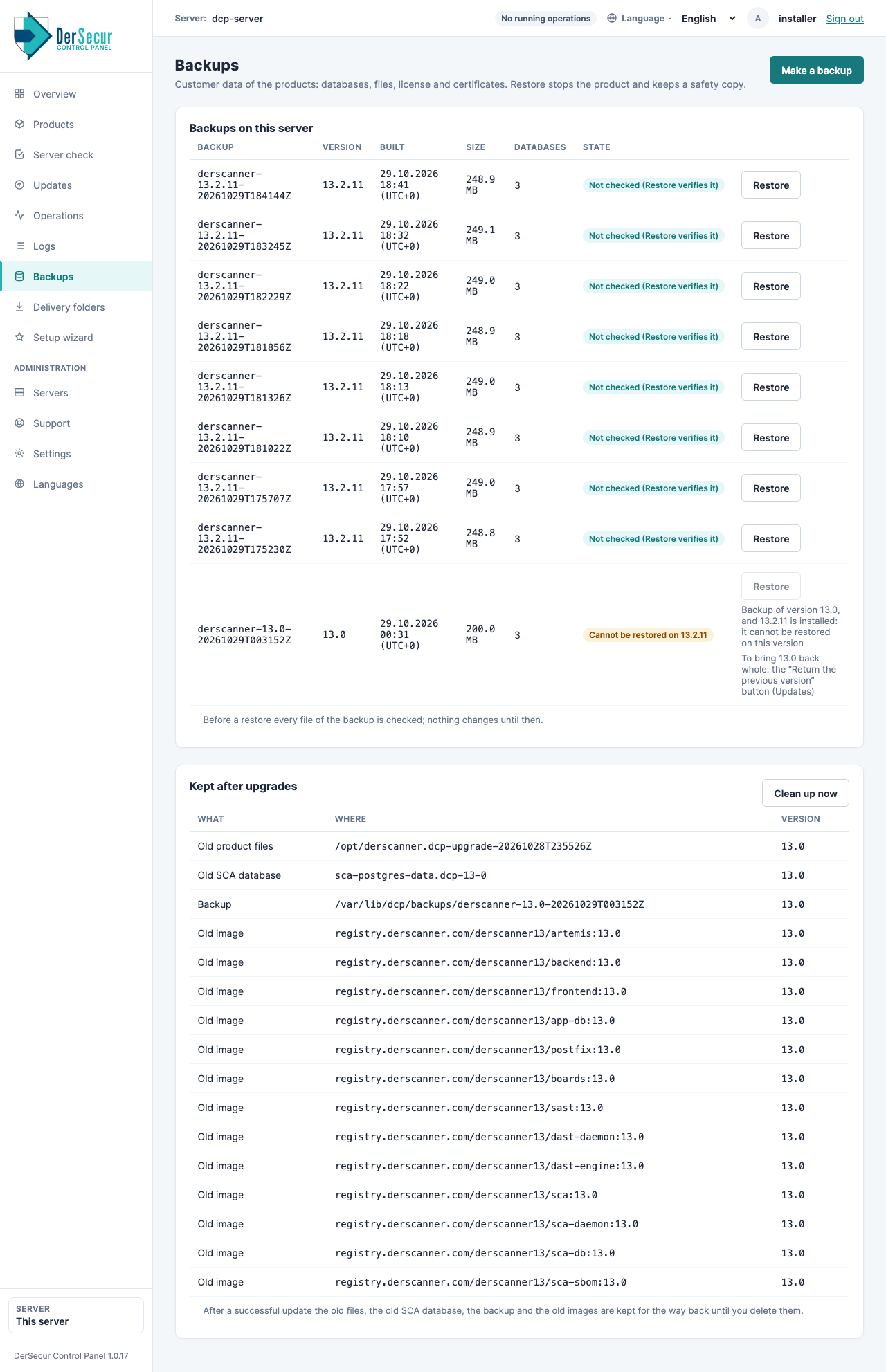
Backups of this server: state, version, size and the Restore button.
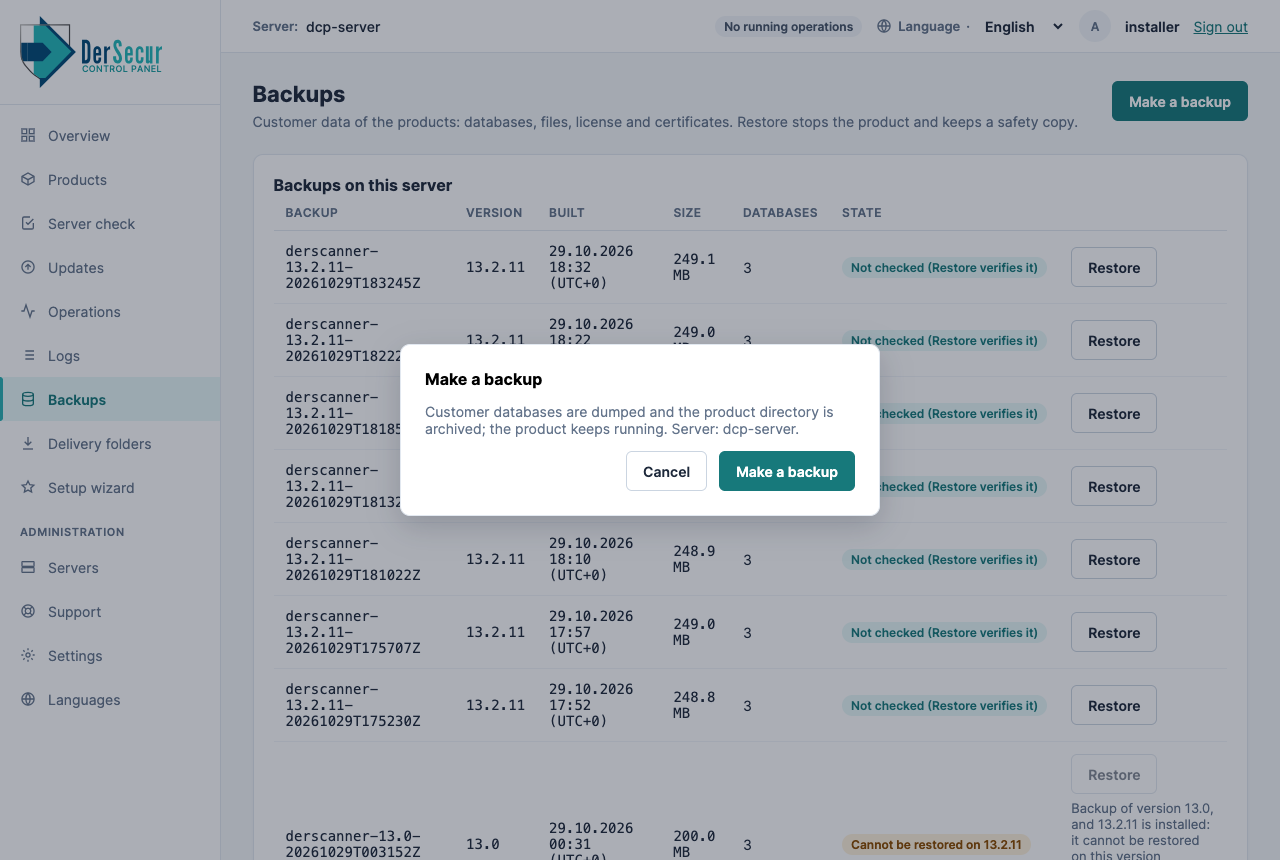
Confirmation of a backup.