Licence and first product sign-in
The licence belongs to the DerScanner product and is bound to its Installation ID. Signing in to the control panel or successfully downloading images does not activate the product licence. A new product may show Missing license until the matching file is loaded. The licence comes after the installation: nothing in an installation, an update or a module addition asks for one, and the rules are loaded without it.
Obtain a licence for this installation
- Wait for the installation completion screen and open the displayed DerScanner address. Do not use the panel's sign-in form for licence upload.
- Copy the Installation ID from the product's sign-in page. If the panel completion screen also shows this identifier, its copy button can be used.
- Make sure the identifier is from the intended installation, especially when you administer more than one server or have reinstalled the product.
- Send the identifier to your DerScanner manager and request the licence for the agreed modules and period. Do not send the panel password, registry password or generated
adminpassword. - Save the returned licence file without editing it. For a closed server, transfer it through the approved offline-file process to a computer that can open the product page and select the file.
Upload and sign in
- Load the file in one of two places: on the Overview of the panel (the License card, Load the license file), or on the DerScanner sign-in page (Upload License). Select the returned file.
- Wait for the product's acceptance result. If an error appears, keep its exact text and correct the cause before treating the licence as active.
- Obtain the generated product password from the panel completion screen using Show and copy if you have not already stored it securely. The product username is
admin. - Sign in to DerScanner with that product account. The registry account issued by DerSecur is used by the installation panel and registry, not as a replacement for the generated product administrator password.
- Change the generated password in the admin profile and store the new password securely.
- Open Admin Panel → License in DerScanner. Check the accepted licence, its expiry and the licensed modules against the agreed deployment.
The module choices in the installation wizard and the rights in the licence serve different purposes: the wizard installs the components, and the licence grants the corresponding use rights. If a required module is missing from either, resolve that discrepancy using the module-management or licensing procedure.
Replace an expiring licence
- Request the replacement licence for this installation's current Installation ID and required modules.
- Sign in to DerScanner with an account authorised to administer licences and open Admin Panel → License.
- Use the product's licence-loading control to select the replacement file and wait for acceptance.
- Recheck the displayed expiry and module rights. Keep the panel available for infrastructure maintenance; licence replacement takes place in the product.
If upload or sign-in does not succeed
- Licence rejected: compare the Installation ID used in the request with the one currently displayed, confirm the file is the unmodified file returned by the manager, and check the server clock. Give the error text to the manager or support.
- Expected module unavailable: compare the installed components with the licence rights. Do not assume re-uploading the same licence installs a missing component.
- Password rejected: confirm you are on the product page and using the product
admincredentials. A panel session does not sign you into the product. - Page keeps loading after reinstallation: try a private browser window or clear site data for the DerScanner address, then reopen it. If the problem remains, retain the error and use support rather than reinstalling again.
Keep licence files and credentials out of screenshots. For support, provide the relevant error and installation context through the agreed channel.
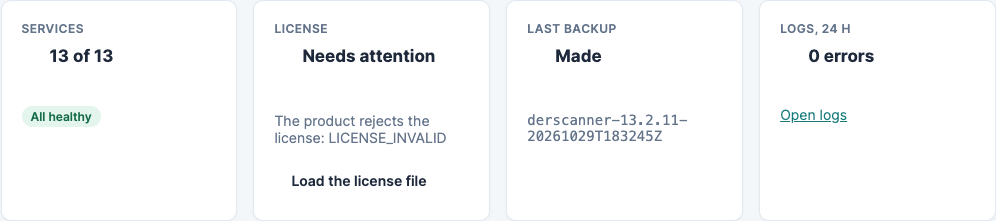
The License card of the Overview: when DerScanner has no valid license, Load the license file is offered here.
Licence status in the panel
The Overview of the panel has a License card. It shows Active with the expiry date, or Needs attention with the reason. While DerScanner has no valid licence, Overview offers Load the license file; the rules of the installation and of every update are loaded without a licence. Choose the file you received (.lic, .xml or its .zip archive; not empty and under 1 MB). For a remote server, the licence is loaded on that server: open DerScanner there and load it on its sign-in page.
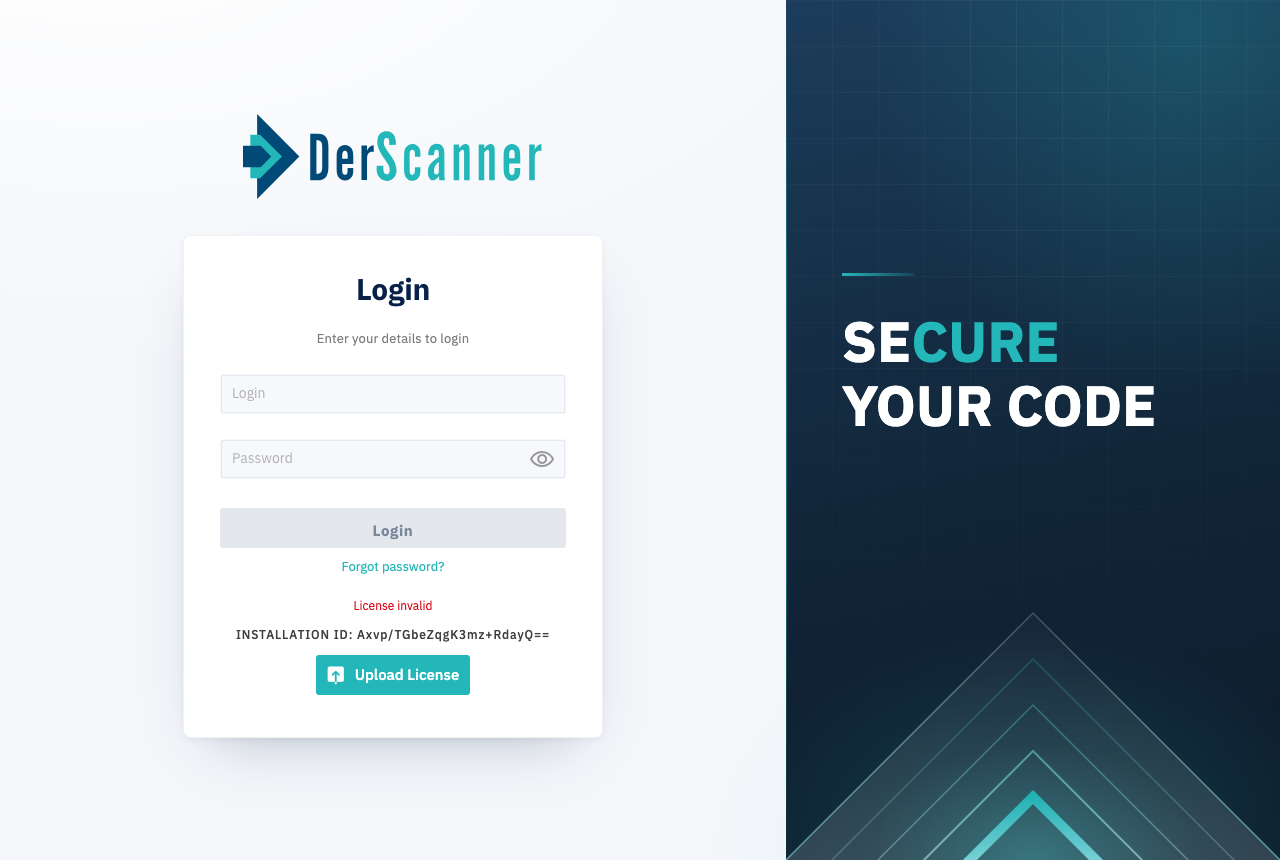
Sign-in page of DerScanner: the Installation ID and the licence upload.