Update DCP itself
DCP and DerScanner use separate update actions. To change the panel version, use the DerSecur Control Panel entry, not a DerScanner release update. Retain administrator access to the server and use an approved signed update source.
- Open Products and find DerSecur Control Panel. With internet the card reads, for example, Latest "1.0.17 · newer" with the button Update the panel. The panel asks the registry at most once an hour; press Check now to ask at once. The Overview card "A new panel version … is available" appears only when a panel update lies in a delivery folder on this server (Delivery folders marks such a folder "Panel … only, for the update of the panel"); it does not announce an online update. Compare the installed and offered versions. If the offer comes from a delivery folder, the panel shows "Version stated by the folder; not verified" with the folder fingerprint: compare it with the one noted at preparation. If no panel update is offered, do not substitute a DerScanner update.
- Press Update the panel when the intended version is available. Read the confirmation naming source and target versions. Cancel leaves the current panel unchanged.
- Confirm. The panel checks the signature, tries the new binary, replaces it and restarts. Keep the tab open and follow the messages.
- Restarting can temporarily interrupt panel responses. Do not start another update in parallel. If waiting takes longer, read the checking/waiting message and check server connectivity.
- After the final message, sign in again with the same login. The sign-in page says "The panel is updated to …: sign in with the same login", also after an update from dcp 1.0.16 and also when the page was opened before the new panel finished starting (it keeps asking for the result for up to 30 seconds). If the panel does not answer within 5 minutes, or reports that it did not restart and the previous version still runs, restart the service of the control panel on the server and open the page again; DerScanner keeps working. Check the running version in Products. If the previous panel was restored, retain the stated reason and use the version actually reported.
- Open DerScanner and check product availability. The panel is not the product: losing its browser tab does not itself mean DerScanner stopped.
For an administrator using SSH, sudo dcp self-update --check checks availability. To execute from a folder, use sudo dcp self-update --pack /PATH/TO/FOLDER; for the online source use sudo dcp self-update --online. The online source needs no account, only a server that reaches registry.derscanner.com; otherwise use a delivery folder (--pack). Substitute the real path and read the command's output and confirmation. Do not manually overwrite the running DCP with an unverified binary.
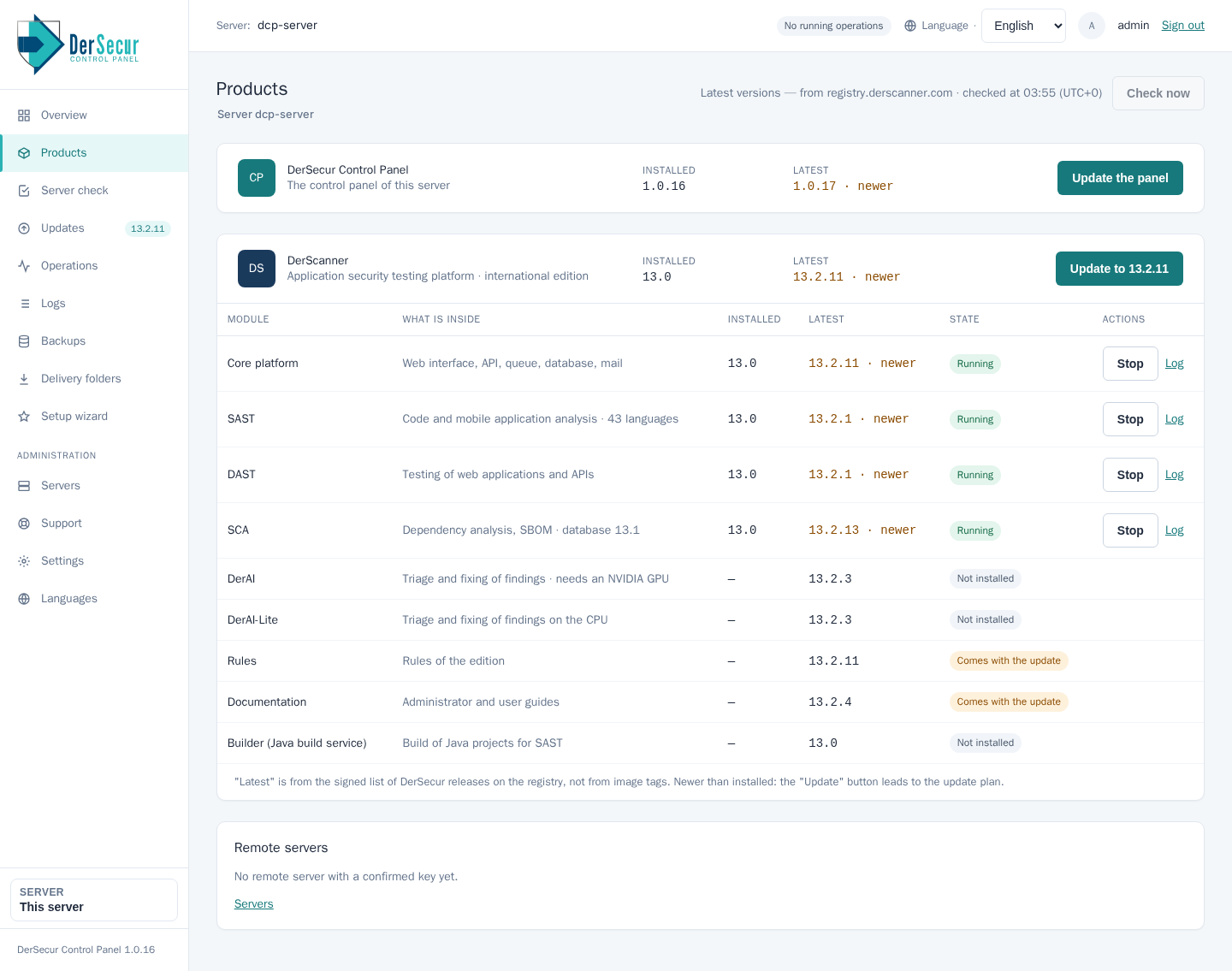
Products of a panel 1.0.16 with internet, after Check now: DerSecur Control Panel 1.0.17 is offered with Update the panel. After the update the sign-in page says that the panel is updated: sign in with the same login.
Update the panel before DerScanner
Update the panel first, then DerScanner. An older panel can show on Products a newer DerScanner version than it is able to install; its update button then refuses and changes nothing. After the panel update the new version is offered and installs as usual. When the registry already holds a new DerScanner line that this panel has no release for, Products says "DerScanner … is in the registry; this panel version has no release for it yet: update the panel".
If sign-in cannot be restored, use server access and the service journal. Do not delete DCP state to obtain a fresh sign-in screen. Collect diagnostics after recovering access.