Update without internet access
Prepare a complete delivery folder for the exact target release, edition and module set. You prepare the folder yourself (wizard or sudo dcp pack prepare, see Installation without internet); read there what its checks cover. Include files for any added modules. Keep the folder intact and do not disconnect its disk while the operation uses it.
- On an internet-connected server, use Prepare for a server without internet in the wizard. Check that the offered delivery version matches the required update target; if it does not, prepare the folder on the console with
sudo dcp pack prepare --release VERSION(see Installation without internet). Note the folder fingerprint the preparation shows. Wait for completion, retain the displayed path and transfer the whole folder to the target server or its attached disk. - If DCP is not running on the target, use the command supplied in the folder. Open the panel using its printed instructions. Installing DCP does not mean installing a new DerScanner over the existing product.
- Open Delivery folders to check detection and folder status. For the existing product, then open Updates and choose the target release.
- In the plan choose From the delivery folder, then select a matching folder from the list. This update form uses a detected complete folder, not an arbitrary browser-side path field.
- If no folder appears, check transfer, mounting and access to the directory on the server. If the edition differs, obtain the right folder; changing interface language does not change compatibility.
- Complete the required signature and file checks. For a folder you prepared yourself, compare the Folder fingerprint shown beside it with the one noted at preparation. If the folder is not of this server's edition, the plan says so and the update does not start from it. Do not bypass corruption or mismatch errors. A long check of a large folder shows how far it is ("checking the files, N of M MB"). A folder that holds only the panel is not a delivery folder of DerScanner: the plan refuses it, and Delivery folders marks it "Panel … only, for the update of the panel". Review free space, all warnings and acknowledgements; the update plan asks for no typed server name.
- For one server, press Start the update. For a distributed installation, follow Upgrade a distributed installation and press Update all servers. Managed connections transfer files to nodes; their connectivity and resources still matter.
- Follow file import, backup, migration and verification. Afterwards check the product, data, licence and nodes.
Avoiding internet downloads does not remove space requirements: allow space for the copy of the delivery folder, unpacking, backups and the previous version, on the main server and on every node. The plan checks this space and the update does not start while it is short. Do not enter registry credentials for a folder merely because the online route requires them. Signature or file errors require repairing or replacing the delivery, not reinstalling over customer data.
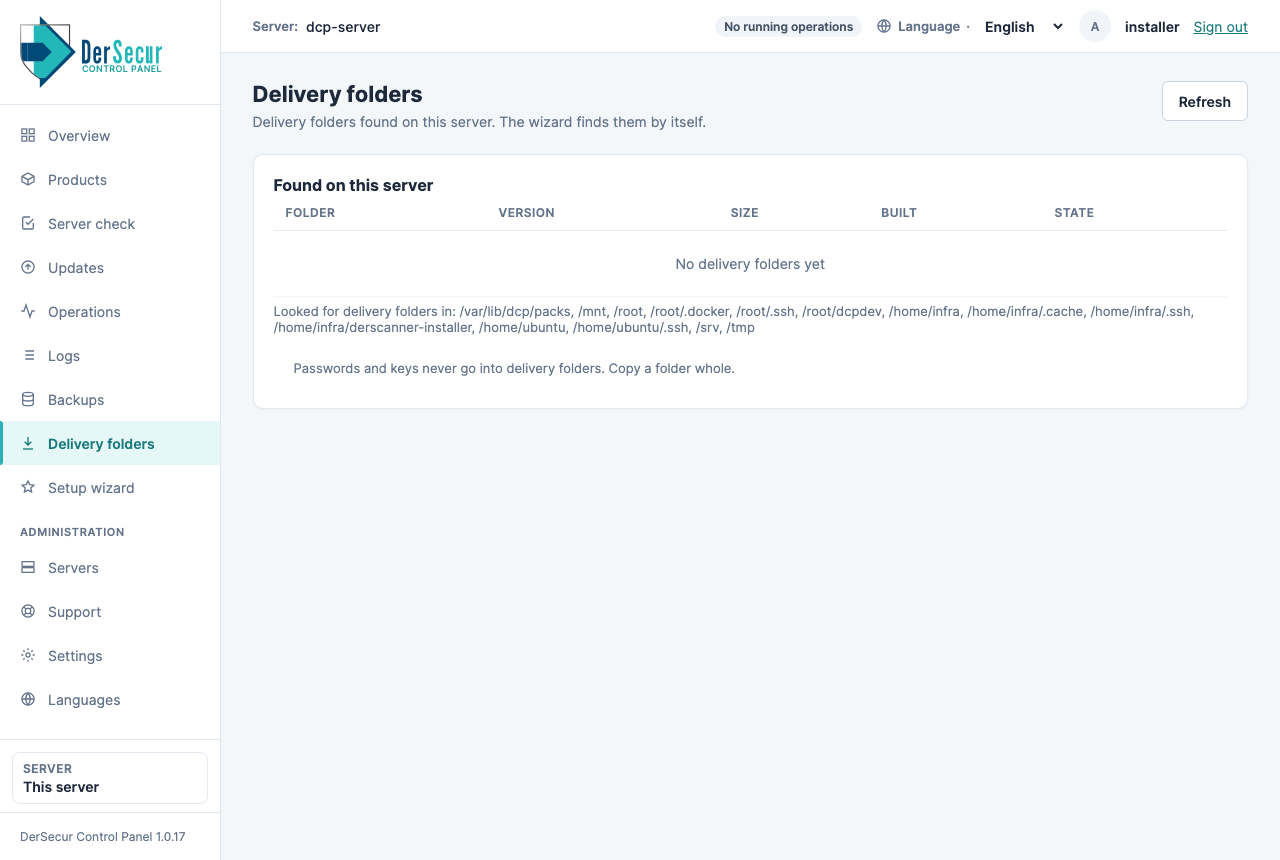
Delivery folders found on this server, with their state.