Upgrade an older single-server installation
Video walkthroughs (YouTube):
- See What Changed in the DerScanner REST API Before You Upgrade — DerSecur Control Panel
- Update DerScanner 12.6 to 13.2 in a Few Clicks — DerSecur Control Panel
Use this route for a server without separate scanner nodes. Use Upgrade a distributed installation for a distributed installation. Schedule maintenance, finish scans and check the snapshot and independent backup first. The update does not need a licence.
- On Overview, choose Update to …, or open Updates and select an offered target. Check the source version, target version, edition and server name.
- Read the download, disk-space and downtime cards, then every paragraph under Found on the server. Do not assume an additional SCA duration is already included in the headline downtime. Resolve an unclear maintenance estimate before starting.
- Confirm sufficient space on affected disks and backup storage. Unknown free space requires investigation. The plan also counts the copy of a delivery folder and shows the partition of the backups (Partition of the backups); if the copy does not fit, the Disk space card says so and the update does not start. Do not bypass resource safeguards.
- Under Confirmation, the mandatory backup is already selected. Acknowledge product unavailability. If additional SCA-log or snapshot acknowledgements appear, satisfy their conditions first. Losing SCA job history is distinct from retaining SCA findings. If the panel could not check other servers, it asks you to confirm No module of this DerScanner runs on another server — continue. Confirm only if that is true; otherwise use Upgrade a distributed installation. When the DerScanner task queue shows no other server, the plan only warns that the installation is treated as a single server.
- Review Modules of the update. When moving from a branch below 13.2, installed modules update together. Do not apply the partial-update choices of newer versions to this transition: the plan explains that modules of the new version cannot run next to older ones, so to leave a module out, remove it first with Remove. On a classic installation, which has no Remove before the update, the plan says instead to remove the module after the update (Remove on the Overview). A module you want to add is ticked in the same form (see Upgrade and add a module on the current server); after this update modules can be updated one by one. Review the rules-update checkbox.
- Under Where to install from, choose From the internet and enter registry credentials when requested, or From the delivery folder and select a matching complete folder. A saved accepted account may remove the need to enter its password again.
- Press Start the update. The update plan asks for no typed server name: an update makes a backup first and deletes nothing. If the button is unavailable, check space, source, account and required acknowledgements.
- Follow the steps and journal in Operations. You can close and reopen the browser. Do not start a second update while the first operation remains active.
- After completion, use Overview and Products to check versions, services and licence, then open DerScanner and inspect your data. Read result warnings.
If the plan itself finds a problem, the update does not start and nothing is changed: try again, or collect the archive for support on Logs. After a failure, read the rollback outcome. Use Recover after an interrupted update, restart or lost connection if recovery remains unfinished. To undo a successfully completed update, use Return to the previous version after an update.
Newer modules of the installed version
When newer modules exist for the version you run (or DerSecur pushed a new image of the same version), Overview shows "DerScanner …: newer modules available" with the installed version and the module list, and the button Update modules. This is not a release update: the update keeps the data and makes a backup first. Use the same confirmation, source and operation steps as above, and check the module versions in Products afterwards.
The result names the modules it changed, for example "Updated: SCA 13.2.12 → 13.2.13", and the way back lists only modules whose image really changed. The Overview shows the version each module really runs and offers no update for a module that already runs the newest version.
A main server with scanner nodes
On a main server whose task queue is used by scanner nodes, the plan of this server alone does not show red errors for them: it names each connected server of your Servers list and says that the update of all servers is the way on (see Upgrade a distributed installation).
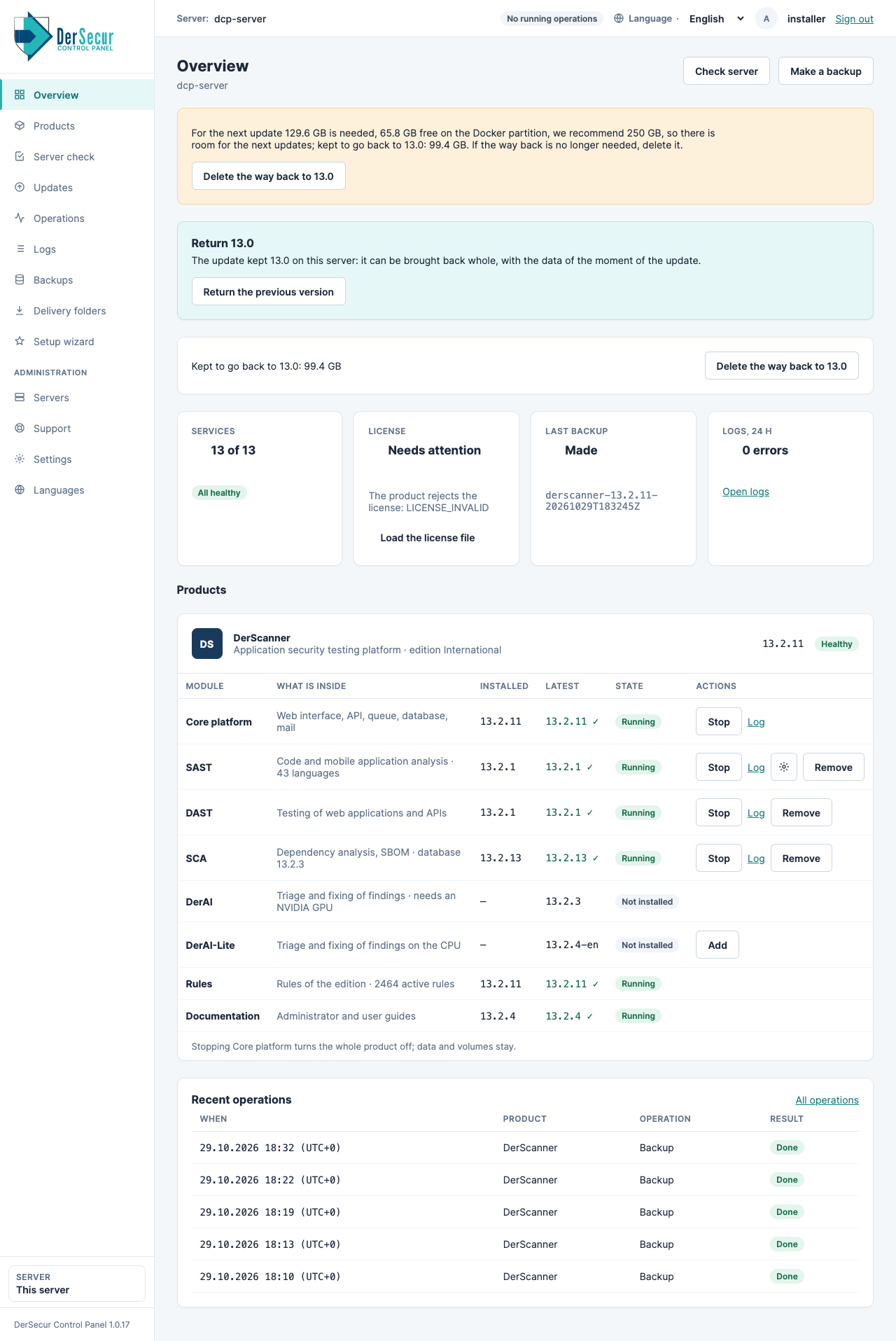
Overview of the server: version, state, licence and offers.
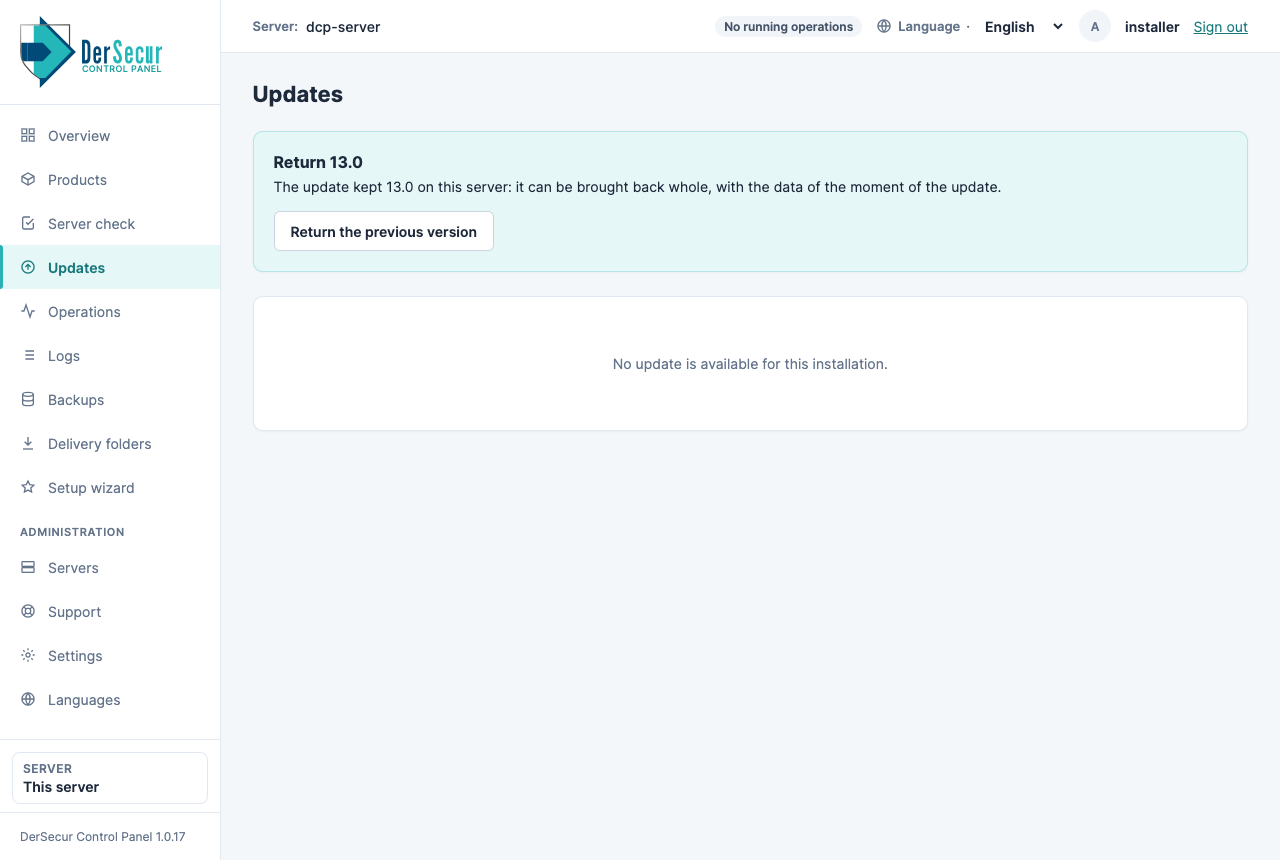
Updates: the plan of an update is built here.