Return to the previous version after an update
Use return when an update completed but you need the previous version and its data as of the update. Recover after an interrupted update, restart or lost connection covers unfinished automatic rollback. Return depends on retained files and backup; its action may disappear after cleanup.
- On Overview or Updates, find Return the previous version. Open its plan instead of starting a fresh installation of the old release. If only some modules were updated, the plan reads "Return …" with those modules: the update kept their previous images, and they come back with the data of the moment of the update.
- Check current and returning versions, listed modules and data timestamp. Read what is lost: work created after the update is not part of the returned state.
- Read disk-space warnings and steps. A safety backup of the current state is made before return. Resolve insufficient space without deleting the required return material.
- Select I understand that what was made after the update disappears and type the server name. For one server, press Return … with the displayed version.
- For a distributed installation, work on the main server. Review the all-server card, running-scan handling and preflight results. Press Return all servers. Do not return Core alone while incompatible scanner nodes remain active.
- Follow steps and the journal. During an all-server return, nodes return before Core and remain held until versions are compatible. Do not start them manually midway.
- Read the final result, then verify versions, services, licence and data at the timestamp shown in the plan. Check every node in a distributed installation.
Version return, backup-data restore and automatic rollback are different operations. Do not restore an old-version backup onto a newer product version. If no return path remains, ask the administrator to review retained backups and the current version.
Clean up now (on Overview: Delete the way back to … with the version named) for material kept after an update permanently deletes the old product files, old SCA database, old images and the pre-update backup; copy that backup off the server first if you still need it. It also removes the option to return the previous version. After a completed return, Remove the leftover version refers instead to the newer version's files and safety backup left on the server. Check which version and backup the panel names before deleting either set. If return is interrupted, keep the retained material and follow Recover after an interrupted update, restart or lost connection.
A return cut by a power failure
If the server lost power or restarted in the middle of a return, DCP undoes the return when the server comes back and keeps the current version as it was. Overview and Updates then say so, for example: "The return from 13.2.11 to 13.0 was undone: it was cut at the step … and 13.2.11 is kept as it was. To return to 13.0: “Return the previous version” on the Updates screen". For single modules the notice names the modules.
To try again, press Return the previous version on Updates (console: sudo dcp revert --yes); sudo dcp status shows the same notice. The panel says the same for a remote server chosen in Servers. While an operation is running the notice is not shown; while the server is still finishing a cut operation, Overview says "The server is finishing an interrupted operation" (see Recover after an interrupted update, restart or lost connection).
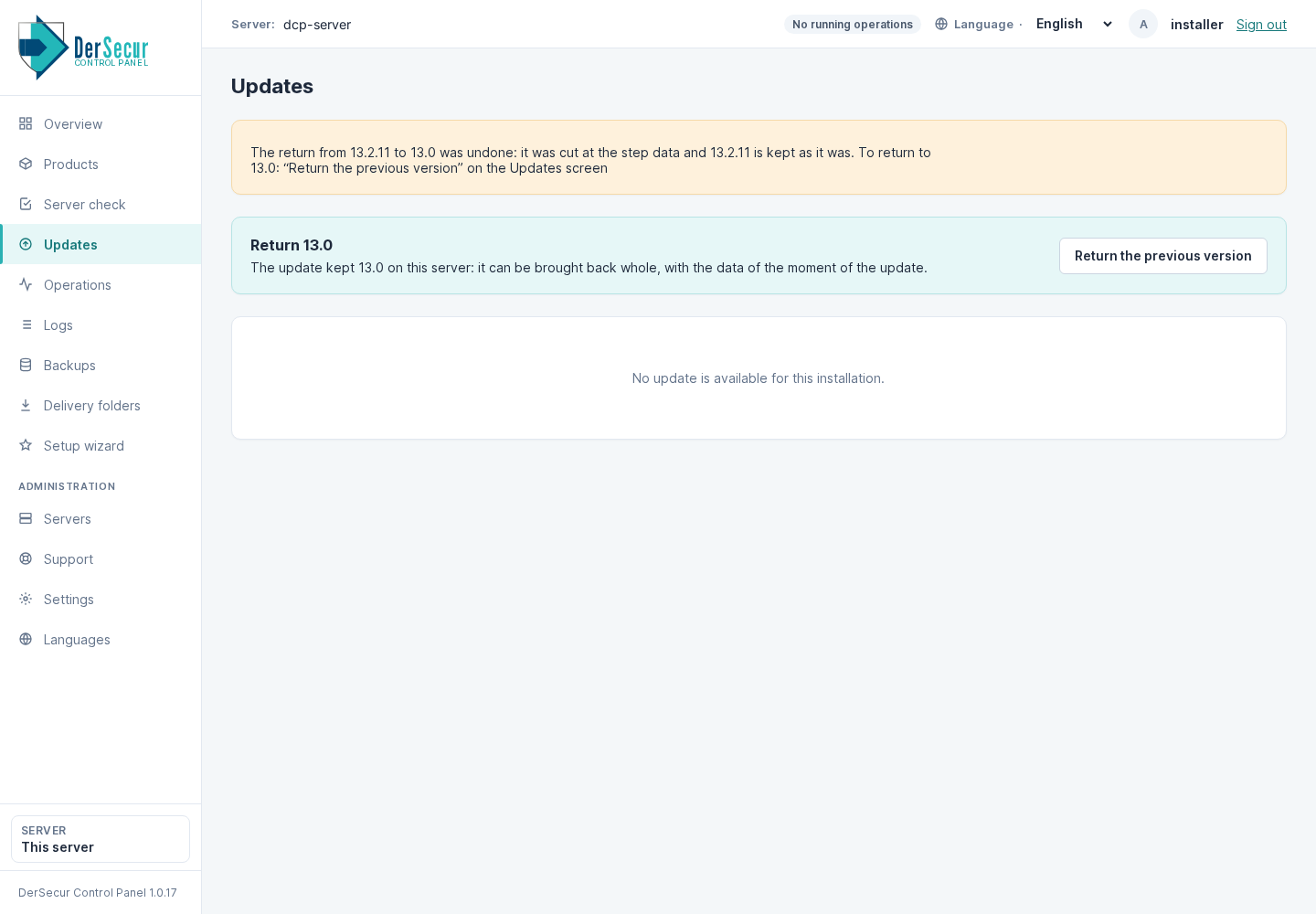
Updates after a return that a power failure cut: the return was undone, the current version is kept, and the return can be started again.
When Return the previous version is absent
The panel states why a version cannot be brought back, for example: nothing earlier is kept on this server; the update was made by an earlier version of the panel, which did not record the way back; another version was installed after that update; a module was added after the update, and the return would remove it with its data (remove the modules added since first); or the saved files, the saved SCA database, the backup made before the update, or the images were deleted. In these cases use a backup of the same version with Restore a backup, or ask support.